Actionscript 3.0 Xml driven menu.

We will build a menu witch is powered by an xml file; this offers a lot of flexibility because you can add/remove buttons by modifying the xml file and not by modifying the .fla file. The buttons will maintain they down state when clicked.
We will not have any code on the timeline, all the code will reside in external classes, so it’s not only an xml driven menu it’s also coded in OOP style.
We will use something called optional parameters; they are parameters that have a default value. To better understand this, let look at a simple example.
function sayMyName(name:String = "Sorin"):void
{
trace (name);
}

We have a function with a parameter called name witch has a default value(Sorin), if we call the function with no parameter passed to it the output will be Sorin
sayMyName();
output: Sorin

if we call the function with a custom value("Elvis") the function will output Elvis
sayMyName("Elvis");
output: Elvis


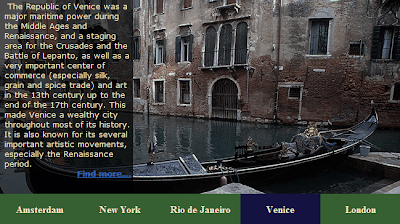
Here is how the menu looks with the default arguments:
xml menu with default arguments
And the menu with custom arguments:
xml menu with custom arguments


1. Establish the project structure.


Make the same folder hierarchy like in the image.
menu folder hierarchy
-gs contain the TweenLite api, a tweening engine that we will be using in our project. Download it from http://blog.greensock.com/tweenliteas3/ and place the gs folder inside the XML_menu folder(it will not be included in the source files);
-ro\Sorin\utils\ will hold our classes
The other folders are self-explanatory. We have a swf folder because our menu has to do something, in this case it will load some external swfs.


2. Creating the xml file structure.


The xml file looks like this:

<?xml version="1.0" encoding="utf-8"?>
<menu>
<item>
<label>Home</label>
<url><![CDATA[swf/home.swf]]></url>
</item>
<item>
<label>About</label>
<url><![CDATA[swf/about.swf]]></url>
</item>
<item>
<label>Portofolio</label>
<url><![CDATA[swf/portofolio.swf]]></url>
</item>
<item>
<label>Contact</label>
<url><![CDATA[swf/contact.swf]]></url>
</item>
</menu>

Every item tag contains the data for one button. Make an identical xml file and save it as menu.xml in the xml folder.


3. Creating the swf files.


We will have 4 buttons so we need 4 swfs. Create 4 swfs with the width: 435 and height: 245
Save them in the swf folder with the fallowing names: home.swf, about.swf, portofolio.swf and contact.swf.
Put anything you want on this swfs, just make them different so we can know that we have loaded a different swf. Mine looks like this:
home page swf


4. The CustomButon class.


I will not explain every line of code, if there are portions of code that you don’t understand just ask and I will try to explain it.
I have tried to give to the variables and functions meaningful names.I hope that this will make code understanding easier. For example:
btnBg means button background
btnId - the buttons id;
overColor – the color that you se when the mouse it’s over the button

package ro.Sorin.utils
{
import flash.display.MovieClip;
import flash.display.Sprite;
import flash.events.MouseEvent;
import flash.text.TextField;
import flash.text.TextFieldAutoSize;
import flash.text.TextFormat;
import flash.text.TextFormatAlign;
import gs.TweenLite;

/**
* ...
* @author ...Sorin Haidan
http://biochimistu.blogspot.com
*/
public class CustomButton extends MovieClip
{

private var btnBg:Sprite;
private var btnTextField:TextField;
private var btnText:String;
private var btnTextFormat:TextFormat;

private var btnWidth:Number;
private var btnHeight:Number;

private var outColor:uint;
private var overColor:uint;
private var textColor:uint;

private var btnId:uint;

public function CustomButton(_btnText:String, _btnWidth:Number=150, _btnHeight:Number=60)
{
btnWidth = _btnWidth;
btnHeight = _btnHeight;
btnText = _btnText;
setButtonsColor();

}

public function setButtonsColor(_outColor:uint= 0x376032, _overColor:uint = 0x141140, _textColor:uint=0xF8ECC2):void
{
outColor = _outColor;
overColor = _overColor;
textColor = _textColor;
init();

}

private function init():void
{
btnBg = new Sprite();
btnBg.graphics.lineStyle(0, 0, 0);
btnBg.graphics.beginFill(outColor, 1);
btnBg.graphics.drawRect(0, 0, btnWidth, btnHeight);
btnBg.graphics.endFill();
addChild(btnBg);

btnTextFormat = new TextFormat();
btnTextFormat.align = TextFormatAlign.CENTER;
btnTextFormat.size = 16;
btnTextFormat.bold = true;

btnTextField = new TextField();
btnTextField.width = btnBg.width;
btnTextField.selectable = false;
btnTextField.wordWrap = true;
btnTextField.multiline = false;
btnTextField.textColor = textColor;
btnTextField.autoSize = TextFieldAutoSize.CENTER;
btnTextField.defaultTextFormat = btnTextFormat;

btnTextField.text = btnText;
btnTextField.y = btnBg.height / 2 - btnTextField.height / 2;
addChild(btnTextField);
}

public function doOver():void
{
TweenLite.to(btnBg, 0.5, { tint:overColor } );
}

public function doOut():void
{
TweenLite.to(btnBg, 0.5, { tint:outColor } );

}

public function get id():uint
{
return btnId;
}

public function set id(_id:uint):void
{
btnId = _id;
}


}

}

The CustomButton function is the constructor class (this function is called when we create a new button object) it has 3 parameters but only one is required (_btnText:String) the other two are optional parameters, they have a default value(_btnWidth:Number=150, _btnHeight:Number=60).
So we can create a new button by passing only one argument
var testBtn:CustonButton = new CustomButton("Home");
this button will have 150 pixels for the width and 60 for the height
or if we want a button with different size we can do like this:
var testBtn:CustonButton = new CustomButton("Home", 120, 45);
this button will have 120 pixels for the width and 45 for the height.

The setButtonsColor function handles the button colors. It has 3 parameters with default values, if you don’t like the default colors you can call this function with your custom colors.

Inside the init function we draw the button, format and align the text.
Copy the code in a new as3 and save it as CustomButton.as in the utils folder.


5. The Main class.


This will be our Document class, the entry point to our project.

package
{
import flash.display.MovieClip;
import flash.display.Sprite;
import flash.events.Event;
import flash.display.Loader;
import flash.net.URLRequest;
import flash.events.MouseEvent;
import ro.Sorin.utils.*;
import gs.TweenLite;


/**
* ...
* @author ...Sorin Haidan
http://biochimistu.blogspot.com
*/
public class Main extends MovieClip
{
private var testBtn:CustomButton;
private var loadXML:TextLoader;
private var xmlMenu:XML;
private var xmlList:XMLList;
private var nrOfBtn:uint;

//-----contains the custom buttons as objects
private var btnArray:Array = new Array();

//-----contains the paths to the swfs
private var urlArray:Array = new Array();

private var menu:Sprite = new Sprite();

//-----the parent of the swfs
private var pageContainer:MovieClip = new MovieClip();

private var loader:Loader = new Loader();
private var urlRequest:URLRequest;

public function Main()
{
loadXML = new TextLoader("xml/menu.xml");
loadXML.addEventListener(Event.COMPLETE, xmlLoaded);
menu.x = menu.y = 5;
addChild(menu);

pageContainer.x = 160;
pageContainer. y = 5;
addChild(pageContainer);
}

private function xmlLoaded(event:Event):void
{
xmlMenu = XML(event.target.content);
xmlList = xmlMenu.children();
nrOfBtn = xmlList.length();
makeButtons();
}

private function makeButtons():void
{
for (var i:uint = 0; i < nrOfBtn; i++)
{
testBtn = new CustomButton(xmlList[i].label);
//testBtn.setButtonsColor(0x804D2E, 0x522015, 0xffffff);
testBtn.y = i * (testBtn.height +2);
menu.addChild(testBtn);
btnArray.push(testBtn);
urlArray.push(xmlList[i].url);
}
addBtnBehavior();
}

private function addBtnBehavior():void
{
for (var j:uint = 0; j < btnArray.length; j++)
{
btnArray[j].id = j;
btnArray[j].buttonMode = true;
btnArray[j].mouseChildren = false;
btnArray[j].mouseEnabled = true;
btnArray[j].addEventListener(MouseEvent.MOUSE_OVER,handleOver);
btnArray[j].addEventListener(MouseEvent.MOUSE_OUT,handleOut);
btnArray[j].addEventListener(MouseEvent.CLICK,doClick);
}
//-----first button will be selected
setSelectedBtn(0);
}

private function handleOver(event:MouseEvent):void
{
event.target.doOver();
}

private function handleOut(event:MouseEvent):void
{
event.target.doOut();
}

private function doClick(event:MouseEvent):void
{
setSelectedBtn(event.currentTarget.id);
}

private function setSelectedBtn(_id:uint):void
{
for (var k:uint = 0; k < btnArray.length; k++)
{
if (_id == k)
{
btnArray[k].doOver();
loadContent(_id);
btnArray[k].buttonMode = false;
btnArray[k].mouseEnabled = false;
btnArray[k].removeEventListener(MouseEvent.MOUSE_OVER,handleOver);
btnArray[k].removeEventListener(MouseEvent.MOUSE_OUT,handleOut);
btnArray[k].removeEventListener(MouseEvent.CLICK,doClick);
}
else
{
btnArray[k].doOut();
btnArray[k].buttonMode = true;
btnArray[k].mouseEnabled = true;
btnArray[k].addEventListener(MouseEvent.MOUSE_OVER,handleOver);
btnArray[k].addEventListener(MouseEvent.MOUSE_OUT,handleOut);
btnArray[k].addEventListener(MouseEvent.CLICK,doClick);
}
}

}

private function loadContent(_id:int):void
{
urlRequest = new URLRequest(urlArray[_id]);
loader.unload();
loader.alpha = 0;
loader.load(urlRequest);
loader.contentLoaderInfo.addEventListener(Event.COMPLETE,addSWF);
}

private function addSWF(event:Event):void
{
pageContainer.addChild(loader);
TweenLite.to(loader, 1, {alpha:1});
}
}

}

We load the xml file by using a custom class that I have made (TextLoader), you will find this class in the utils folder.
First pas it the path to the xml file
loadXML = new TextLoader("xml/menu.xml");
and then listen for a COMPLETE event
loadXML.addEventListener(Event.COMPLETE, xmlLoaded);
When the COMPLTE event is dispatched we retrieve the loaded data, cast it as XML and assign it to an xml object.
xmlMenu = XML(event.target.content);

Inside the makeButtons function we can change the appearance of the buttons. By uncommenting this line
//testBtn.setButtonsColor(0x804D2E, 0x522015, 0xffffff);
the over, out and text colors change. Give it a try, don’t forget to save the file.

Copy the code in a new as3 file and save it as Main.as in the main folder(XML_menu).


6. Testing the application.


Create a new Flash file (Actionscript3).Set the stage dimensions to 600X255, frame rate to 30 and the Documents class to Main.
Save the file as xml_menu.fla in the main folder (XML_menu).Press Ctrl + Enter to test it. You should have something similar to the image, a basic structure for a site; you can expand it and transform it in a complete flash site.
basic flash site structure
I hope that you enjoyed the tutorial. If you have questions, suggestions, doubts about the tutorial don’t hesitate to comment.

If you have some Flash freelance work I can be contacted at to.sorinn[at]gmail[dot]com.

Until next time have fan learning Flash.


Download the source files for here:Actionscript 3.0 Xml driven menu.

ActionScript 3 button that stay in the down state.

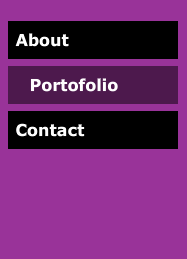
In this tutorial we will build a button (in fact is a movieclip that acts like a button and we will not build a button, we will make a menu) that has an over state, an out state and a down state. Like the title says the button will stay in the down state when is clicked (selected) and because the selected button will look different from the others buttons the user will know exactly on what page is.This is how the menu will look:

1. Create a new file by going to File > New select Flash file (ActionScript 3.0) and click Ok. Save the file as myButton.fla.


2. Insert a new layer (Insert>Timeline>Layer), name the layers beginning from the top: actions and buttons. In the Property Inspector set the frame rate to 30.


3. Select the Rectangle tool set the stroke to none, pick a color (I have picked black) and on the buttons layer draw a rectangle. Set the measurements of the rectangle as fallows: width = 170, height = 40. Select the rectangle and press F8 to convert it to a MovieClip. Set its name to about_btn, the registration point to top left and click Ok. In the Property Inspector set its instance name to about_btn.


4. Double click on the about_btn MovieClip to open it. Insert three new layers and name them from the top: actions, labels, text and bg. Select the black rectangle, press F8 to convert it to a MovieClip and set its name to bg.


5. On the bg Layer select frame 2 and pres F6 to insert a new keyframe, repeat this step for frame 9, 10, 11 and 18. Select frame 9; click on the black rectangle and in the Property Inspector set its alpha property to 50%.Do the same thing for frame 10 and 11.
Now right click between frame 2 and 9 and chose Create Motion Tween. Do the same thing for the interval 11-18.Your bg layer should look like this:


6. Lock the bg layer and select the text layer. From the Toolbar pick the Text tool set its type to static and on the stage click and type the word About. Select the text field, press F8 to convert it to a MovieClip and set its name to aboutTxt.
Position the aboutTxt movieclip at x=5 and for y put the movieclip in the center of the black rectangle.


7. On the text Layer select frame 2 and pres F6 to insert a new keyframe, repeat this step for frame 9, 10, 11 and 18. Select frame 9; click on the aboutTxt movieclip and in the Property Inspector set its x=20.Do the same thing for frame 10 and 11.
Now right click between frame 2 and 9 and chose Create Motion Tween. Do the same thing for the interval 11-18.


8. On the labels layer select frame 2 and pres F6 to insert a new keyframe, repeat this step for frame 10 and 11.Select frame 2 and in the Property Inspector set the Frame name to over, set the name for frame 10 to down and for the 11 frame to out.


9. On the actions layer select frame 1 hit F9 to open the ActionScript panel and type stop();Select frame 9 and pres F6 to insert a new keyframe , open the ActionScript panel and type stop();.


Now our about_btn is complete. This is how the button should looks inside:


Click on the Scene 1 to go back to the main stage. We will build two more buttons so in the final we will have a nice menu with three buttons. You can make more buttons if you want.


10. Click on the about_btn on the stage, hold down the Alt button from the keyboard and drag a new copy of the button. Right click on the new button and chose Duplicate Symbol, set the name of the button to portofolio_btn. In the Property Inspector set its instance name to portofolio_btn.


11. Double click on the portofolio_btn, we need to change the text. On the text layer select frame 1, right click on the aboutTxt movieclip and chose Duplicate Symbol, set the name of the button to portofolioTxt. Now, double click on the portofolioTxt movieclip to open it and change the text to Portofolio.


12. Go back to the portofolio_btn by clicking on that blue arrow from the left just under the Timeline. On the text layer select frame 2, right click on the aboutTxt movieclip and chose Swap Symbol, select portofolioTxt and click Ok. Repeat this process for frames 9, 10, 11 and 18.


Our second button is ready. Now we have two buttons: About and Portofolio. The third button it’s on you, fallow the steps from 10 to 12 to make a Contact button.


13. Go back to the main stage, now you should have three buttons. Select frame 1 from the actions layer and press F9 to open the ActionScript Panel copy and paste the code from bellow.
Code:
stage.frameRate = 30;
//---- add the buttons to an array --------
var buttonsArray:Array = [about_btn,portofolio_btn,contact_btn];

//----loop thru the buttonsArray-----
//----set some properties and add events to buttons----
function setButtons():void {
 for (var i:int=0; i<buttonsArray.length; i++) {
  buttonsArray[i].id = i;
  buttonsArray[i].buttonMode = true;
  buttonsArray[i].mouseChildren = false;
  buttonsArray[i].mouseEnabled = true;
  buttonsArray[i].addEventListener(MouseEvent.ROLL_OVER,playOver);
  buttonsArray[i].addEventListener(MouseEvent.ROLL_OUT,playOut);
  buttonsArray[i].addEventListener(MouseEvent.CLICK,doClick);
 }
}
//----fires when the mouse rolls over the button----
function playOver(event:MouseEvent):void {
 event.currentTarget.gotoAndPlay("over");
}
//----fires when the mouse rolls out the button----
function playOut(event:MouseEvent):void {
 event.currentTarget.gotoAndPlay("out");
}
//----fires when you click on the button
function doClick(event:MouseEvent):void{
  //----set the currentBtn variable equal with-----
//----the id of the button that was clicked-----
  var currentBtn:int = event.currentTarget.id;
  //----call the setSelectedBtn function 
  setSelectedBtn(currentBtn);
}
/*check to see witch button was clicked
if the id passed to the setSelectedBtn function 
is identical with the id of the button clicked 
we put that buttons in the down state (selected)
and remove all the events added to it*/  
function setSelectedBtn(id:int):void{
 for (var i:int=0; i< buttonsArray.length; i++) {
  if (id == i) {
  buttonsArray[i].gotoAndStop("down");
  buttonsArray[i].buttonMode = false;
  buttonsArray[i].mouseEnabled = false;
  buttonsArray[i].removeEventListener(MouseEvent.ROLL_OVER,playOver);
  buttonsArray[i].removeEventListener(MouseEvent.ROLL_OUT,playOut);
  buttonsArray[i].removeEventListener(MouseEvent.CLICK,doClick);
  } else {
  if(buttonsArray[i].currentLabel =="down"){
  buttonsArray[i].gotoAndPlay("out");
  }
  buttonsArray[i].buttonMode = true;
  buttonsArray[i].mouseEnabled = true;
  buttonsArray[i].addEventListener(MouseEvent.ROLL_OVER,playOver);
  buttonsArray[i].addEventListener(MouseEvent.ROLL_OUT,playOut);
  buttonsArray[i].addEventListener(MouseEvent.CLICK,doClick);
  }
 }
}
//----call the setButtons function----
setButtons();


This is all. I hope that you enjoyed the tutorial. If you have questions, suggestions, doubts about the tutorial don’t hesitate to comment.


If you have some Flash freelance work I can be contacted at biochimistu[at]yahoo[dot]com.


Until next time have fan learning Flash.


Download the source files for here: ActionScript 3 button that stay in the down state.